Office for Home Installation
Note: Microsoft Office apps installed through your Office 365 account will remain active as long as you remain a current student or employee. Once you depart the University, your Office installation will need to be reactivated using a personal account or personal license key.
To install Microsoft Office for Windows using your Office 365 account:
1. Log in to Office 365 using your WashU Key at email.wustl.edu/mail
2. Select the App Launcher in the top left

3. Select Office 365
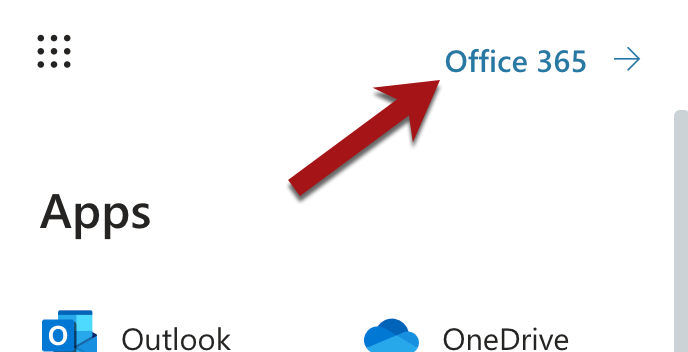
Select the “Install and More” dropdown list on the right-hand navigation
4. Select Install Office and then Office 365 apps
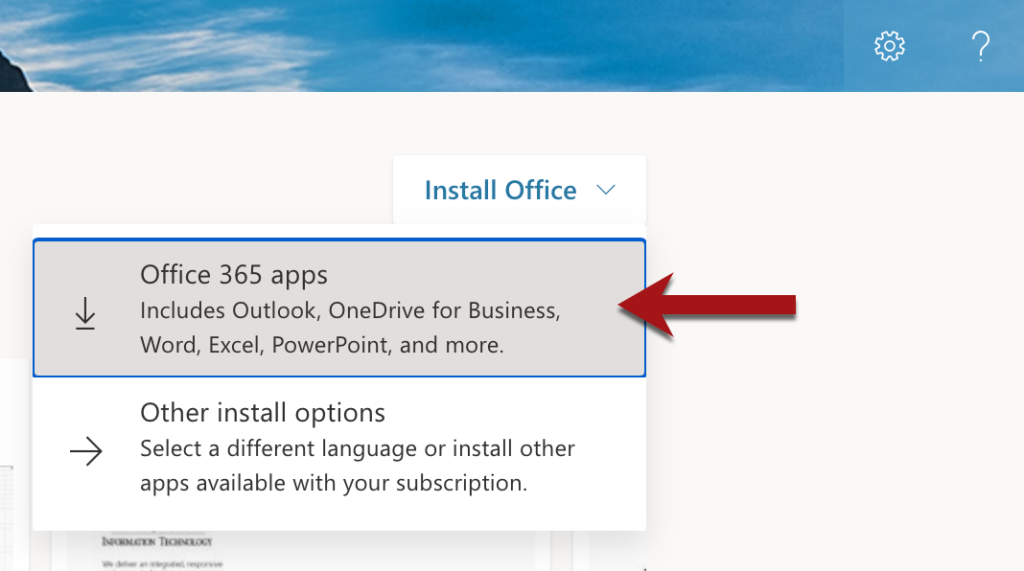
5. Run the downloaded Office setup file
6. If prompted to allow the setup file to run, select Yes
7. Follow the Office installation prompts to move through the install process
8. If prompted to sign in during the install process:
- Type your email address as:
- If your WashU Key username matches the first part of your @washu.edu email address, enter: yourwashukey@wustl.edu
- If your WashU Key username differs from the first part of your @washu.edu email address, enter: yourwashukey@email.wustl.edu
- Select Organizational Account
- Enter your WashU Key password
- Select “Sign In”
9. Although the installation process states that you can use Office during the installation, we recommend waiting until the install process has completed before attempting to open any Office apps
10. Please note that the installation may take some time to complete, especially if you are installing while on a slow Internet connection