New? Start here.
Enrolling in 2FA for the First Time (PDF)
Enroll a Device within 30 Days
- You must enroll an authentication device, typically your mobile phone, with all new WashU 2FA accounts within 30 days of account creation.
- This deadline exists because accounts with no connected authentication device are an information security vulnerability.
- Logging in after 2FA Enrollment
-
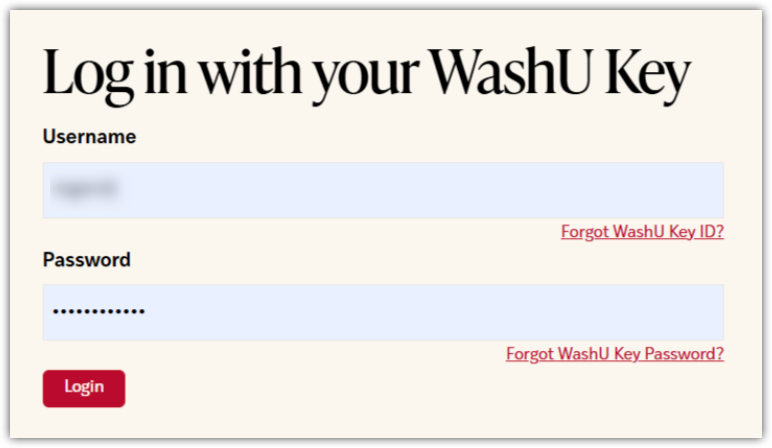
- From a browser, navigate to the WashU Key enabled service. You will be presented with the WashU Key Login screen. Enter your credentials and then select Login. NOTE: Always confirm the URL is correct before selecting Login.
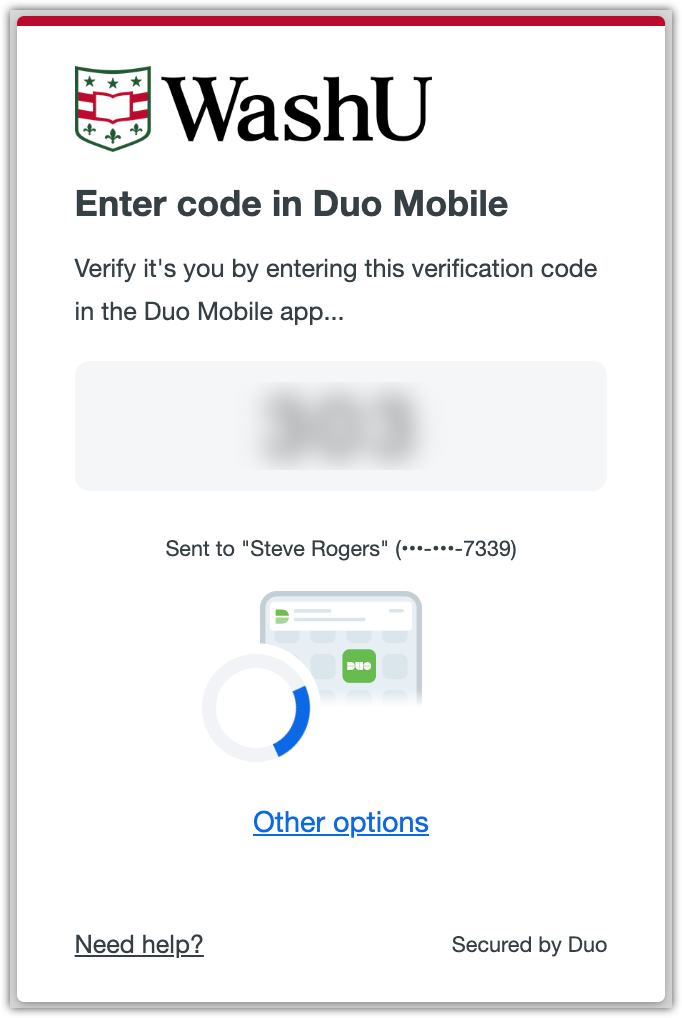
2. DUO 2FA Push will display a 3-digit code on your screen.
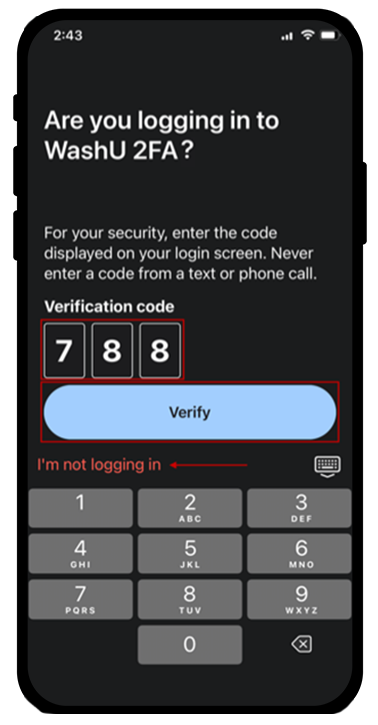
3. Your Duo-registered device will receive a notification and present a verification code entry field. Enter the 3-digit code that was displayed on your screen during step 2 and then tap Verify.
4. The WashU Key enabled service will load in the original browser window and this will now be your default authorization method.
IMPORTANT!
If you did NOT prompt this authentication, tap the I’m not logging in link and then contact the Service Desk right away at 314-933-3333.NOTE: Most applications require your WashU Key ID and Password before authenticating with Duo (as described in steps 1 and 2 below). However, some applications require you to enter your WashU Key password after authenticating with Duo, such as with ECV (login instructions). Other applications require you to enter your WashU Key ID, password and Duo authentication method before authenticating with Duo then require you to re-enter your WashU Key password again after authenticating such as VPN (login instructions).
Security Tips
- Always confirm the URL is correct before selecting the login button.
- Start from one.wustl.edu to log into WashU services and systems when they are available in the portal.
- If you receive a Duo Authentication notification on your device that you did not prompt, tap the I’m not logging in link and contact the WashU IT Service desk right away by calling 314-933-3333.
Manage Enrollment
Add Another Device to Your Duo Account (PDF)
Replace a Registered Device (ex. upgraded to a new phone) (PDF)
Duo Authentication Methods
Follow the steps below to authenticate (auth) using the Duo Push method and set it as your default auth method.
- From a browser, navigate to the WashU Key enabled service. You will be presented with the WashU Key Login screen. Enter your credentials and then select Login. IMPORTANT: Always confirm the URL is correct before selecting Login.
- A 3-digit Duo code will show on the page.
- Your Duo-registered device will receive a notification and present a verification code entry field. Enter the 3-digit code and then tap Verify.
- Note: If you did not prompt this authentication, tap the I’m not logging in link and then contact the Service Desk right away at 314-933-3333.
- The WashU Key enabled service will load in the original browser window and this will now be your default auth method.
- Get a One-Time Bypass Code from the Service Desk to Access a WashU Key Resource
-
- Call the Service Desk at 314-933-3333. Be prepared to provide your WashU Key ID (not password).
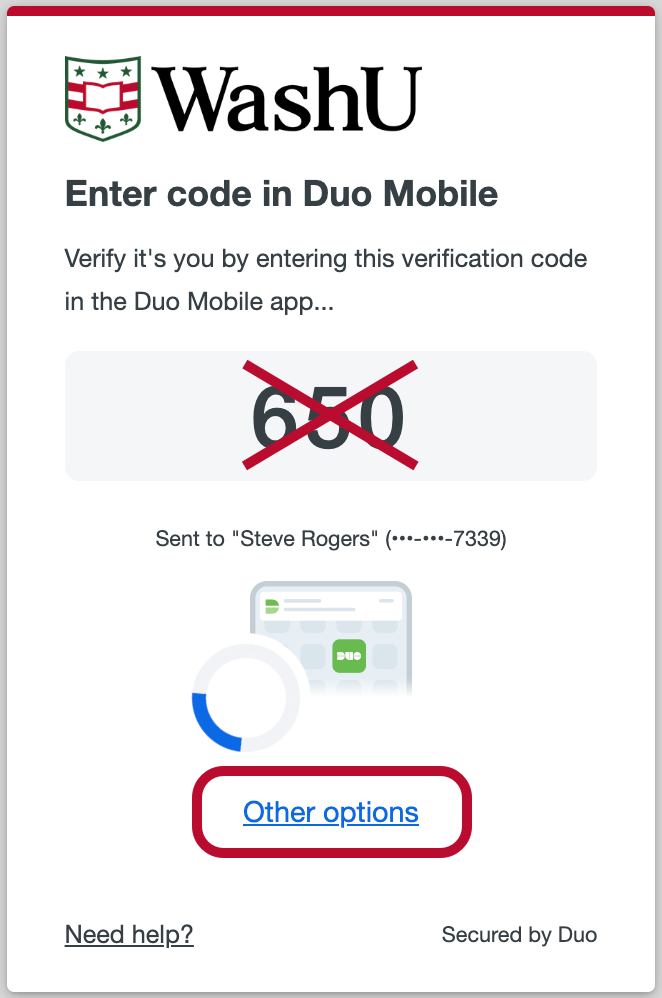
- Attempt to Log In to the WashU Key resource, you’ll be presented with your default Duo authentication method, select Other options, DO NOT complete this authentication.
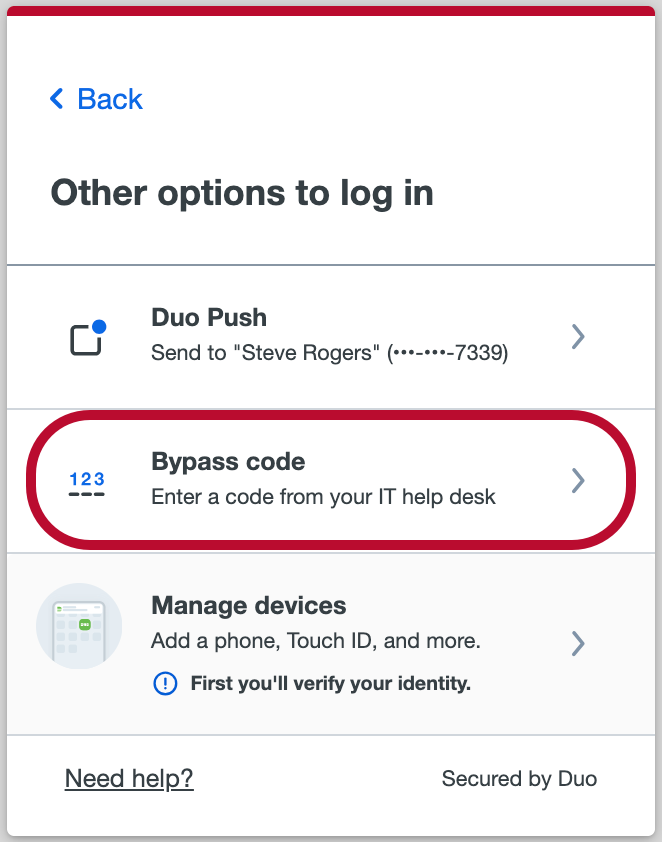
3. Select Bypass code.
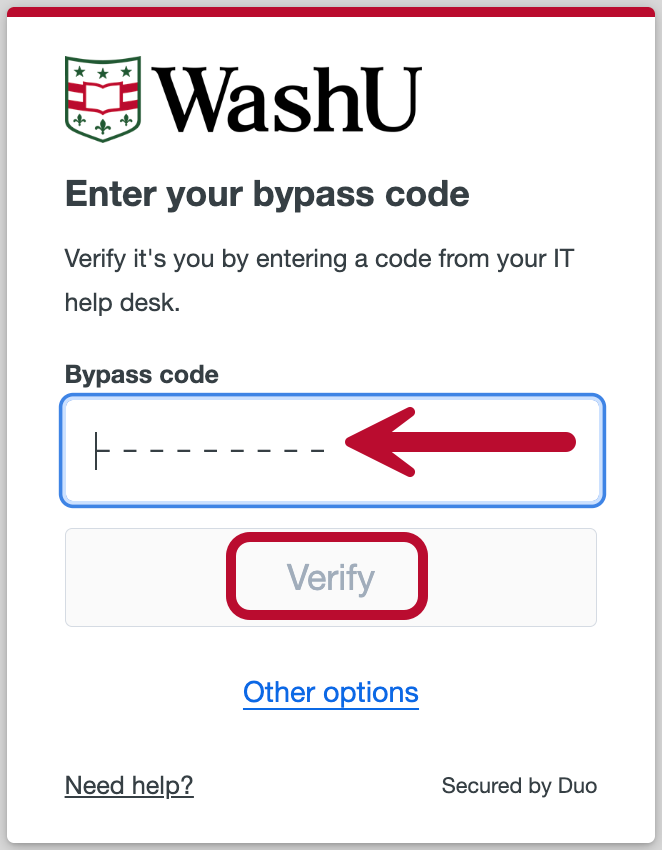
4. Enter the bypass code and select Verify.
5. Your resource will load in the original browser window.
- Call Me and Passcode Available Via Exception Only
-
- The Call Me and Passcode features will be made available upon an approved exception request as they have been identified as significant security vulnerabilities.
- Exception Requests require review and approval by the Office of Information Security.
- Please visit the Can I Still Use Call Me or Passcode Authentication page for more information on the exception request process.
Note: Current Passcode exception holders can continue using Passcode Authentication.
Troubleshooting
- Not Getting Duo Notifications?
-
- Check to be sure your phone is not in airplane mode.
- Be sure the sound is turned on.
- Check that Duo notifications are allowed.
- Call the WashU IT Service Desk at 314-933-3333 if you need assistance.
- Have an Older Phone That Is Not Working with Duo?
-
Android OS11 and Apple iOS 16 or later are required to use the DUO Push method of 2FA.
If you do not have these operating systems or newer on your device(s), you will need to submit an exception request to the Office of Information Security.
FAQ
- Can I move files to my personal Box account?
-
No. Box offers various Business and Individual plans, however, these plans are not authorized for university data because they are not covered under our enterprise agreement. As a result, they do not meet the requirements of our Business Associate Agreement or our Information Security Risk Assessment and may not comply with our Intellectual Property Policy.
- Can I opt out?
-
No, you cannot opt out of WashU 2FA. You must enroll in WashU 2FA to access WashU 2FA enabled systems and services.
- Can I Still Use Call Me or Passcode Authentication?
-
Yes. WashU 2FA passcode and call me authentication methods are still options for individuals with a verified need, such as International Travel, provided you have received an approved DUO Exception Request from the Office of Information Security.
Follow the steps below to submit a DUO Exception Request. If approved, you will be allowed to use the Call Me or Passcode authentication method.
- Navigate to the DUO Exception Request Form (this is a vended 3rd party service)
- Enter your WashU email address on the OneTrust login page
- Enter your WashU Key login credentials and WashU 2FA if prompted to do so
- Select Launch on the Duo Exception Request task.
- Can I transfer the Duo app from one device to another?
-
While the Duo Mobile App can transfer from device to device, you must enroll the new device in the WashU 2FA Management portal as each device must be individually activated.
- Can I use 2FA while traveling or when I have poor connection?
-
Yes. The Duo Mobile App will still allow you to authenticate while traveling provided your enrolled mobile device has service or is connected to the internet.
If you anticipate traveling in areas with a poor connection, please contact the Service Desk at 314-933-3333 or ithelp@wustl.edu and request WashU 2FA ByPass codes. These codes will allow you to authenticate when your mobile device does not have service.
- Can I use 2FA without racking up data or messaging costs on my mobile device?
-
Yes. If you have an approved exception request to use Passcode authentication you can:
- Open the Duo app on your smartphone or tablet
- Select the Duo key icon in the upper right-hand corner of the screen
- This will generate a passcode
- Generating passcodes does not send a message or use data and they can be generated without a network connection.
- Can I use an international phone number?
-
Yes. Duo accepts international phone numbers.
However, DUO access is restricted in specific countries or regions based on federal regulations. Learn more on duo.com.
- Can I use multiple devices?
-
Yes! You can enroll your smart phones and tablets.
See the list Manage Enrollment instructions on the WashU 2FA How-To’s page to learn how.
- Did You Log in Somewhere Without WashU 2FA ?
-
All University websites that ask you for a username and password should utilize WashU 2FA. If you’ve logged in somewhere that didn’t employ 2FA, please report the website to the WashU IT Service Desk for review at ithelp@wustl.edu.
- Do you need WashU 2FA support or have any questions?
-
Please contact the WashU IT Service Desk at 314-933-3333.
- Does Duo work in China?
-
Yes, Duo works with Chinese +86 numbers.
- Duo phone restrictions on Chinese +86 numbers
-
Due to telephony restrictions by the Chinese government, effective April 11, 2019, Duo is no longer able to deliver Call Me authentication to individuals with +86 numbers. All other authentication methods, including Duo Push, are not affected.
Individuals with +86 phone numbers will receive an alert regarding the issue each time they access an application that displays the web-based Duo Prompt.
Please visit the Duo knowledge pages for more information.
Should you need immediate assistance, please contact the Service Desk at 314-933-3333.
- How does two-factor authentication (2FA) work?
-
Two-factor authentication commonly works by asking for something you know (your password) in combination with something you have (your mobile phone) to confirm your identity across a variety of account activities–such as accessing your accounts from new devices, verifying transactions, or recovering your accounts.
- I don’t have cellular or wireless devices. What can I do?
-
If you do not have a smart phone or cellular device you can use Call Me authentication.
Call Me authentication requires an approved DUO Exception Request from the Office of Information Security. Please see Can I Still Use Call Me or Passcode Authentication page for more information.
Duo Push Passcode* Call Me* SMS Text Message* ByPass Code Enrolled Smartphone X X* X* X* Enrolled Tablet X X* Enrolled basic cell phone X* X* Enrolled landline phone X* Contact the Service Desk at 314-933-3333 X * Passcode, Call Me, and SMS Text Message all require an approved Duo Exception Request from the Office of Information Security. Please see Can I Still Use Call Me or Passcode Authentication page for more information.
- I forgot my device with Duo. What do I do?
-
Call the WashU IT Service Desk at 314-933-3333 and request a WashU 2FA ByPass code. When you receive the Duo Authentication screen, enter the provided bypass code and select Log In.
Please see WashU 2FA ByPass codes for more information.
- What if I get a new device and keep my old phone number?
-
Please see the Got a new device with the same number? (PDF) instructions.
- What if I get a new phone and phone number?
-
Please see the Got a new device and phone number? (PDF) instructions.
- What is Duo Security?
-
Duo—an industry leader in easy-to-use, world-class security platforms—developed Duo 2FA, a two-factor authentication service that utilizes a secondary device such as a phone or tablet to confirm your identity when you access sensitive information, such as that contained in the university Workday application. This service provides enhanced security and protects you in the event that someone manages to obtain your login credentials.
- What WashU systems require 2FA?
-
Use of WashU two-factor authentication (2FA) is required for all WashU Keys when signing into Washington University applications from non-trusted networks. Additionally, VPN application authentication always requires WashU 2FA.
If you’re accessing a Washington University system from the Internet using your WashU Key that does not require WashU 2FA, please report this to infosec@wustl.edu.
Please note: Some employees may be required to use 2FA to access various applications even when on a trusted network based on their position and/or department.
- When Must I Use WashU 2FA?
-
For students, faculty and staff, all WashU Key accounts utilize 2FA now. This is needed to further reduce the impact of phishing and other malicious campaigns which are engineered to steal user’s personal and sensitive information. You may still select from on or off campus, but all users have a 2FA requirement.
- Who is required to enroll?
-
The WashU two-factor authentication (2FA) service is for all WashU Key users, including WashU employees, students, and any others who may access WashU Key enabled sites.
- Why does it say my device is registered to someone else?
-
Duo 2FA devices cannot be registered to more than one person. If you are trying to add a device (such as a home phone) that is shared with someone else, and that device has already been registered to another person, you will receive an error message.
- Will Duo see my login credentials?
-
The second factor of authentication is separate and independent from your username and password. Duo never sees your password.
Have Questions or Need Help?
Contact the WashU IT Service Desk at 314-933-3333 if you need assistance.
Have a non-urgent question? Email the WashU IT Service Desk at ithelp@wustl.edu.