Prerequisite: You must have the Duo Mobile app installed and registered prior to completing the instructions below.
Setup Instructions
WashU users have access to Outlook on their Android devices. Follow these steps to get set up.
(Setup will vary depending on the Android operating system.)
- Install the Microsoft Outlook app from the Google Play Store.
- Open the Microsoft Outlook app.

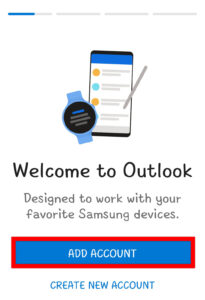
- Select Add Account.
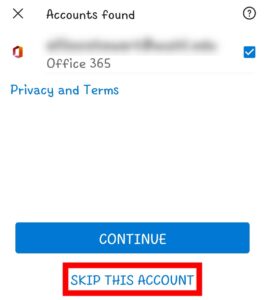
- If any accounts are listed, choose “Skip these accounts.”
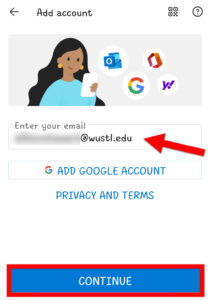
- Enter your …@wustl.edu address and select Continue.
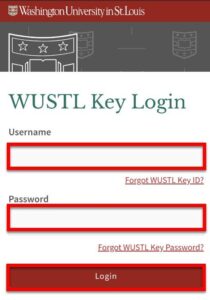
- You may be redirected to the WashU Connect page. Enter your WashU Key and Password. Tap the Login button.
- Use DUO to complete Two-Factor Authentication (2FA). (DUO Help)
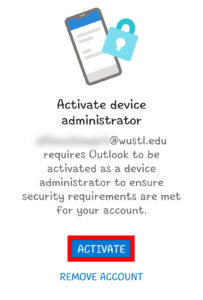
- Select to Activate the device administrator.
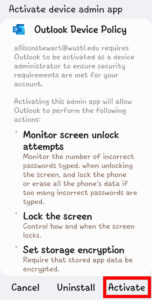
- Select Activate on the next screen to confirm the activation of the device admin app.
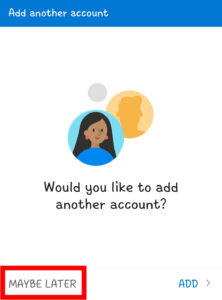
- Select Maybe Later when asked to add another account.
Removal Instructions
Follow these instructions to remove your WashU email from the Outlook app on your Android device.
- Open the Outlook app.

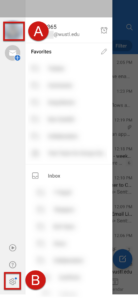
- Tap the Home icon on the top left to open the Left Pane menu. Tap the Settings gear on the bottom left of your screen.
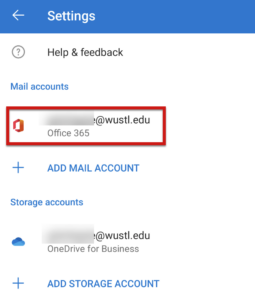
- Select the Office 365 account with your WashU email address.
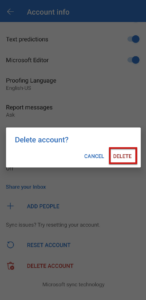
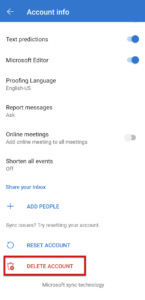
- Scroll to the bottom and select Delete Account.
- Confirm delete by clicking Delete on the pop-up menu.