
A new version of the Zoom app is currently being pushed out to all WashU IT managed computers through the first week in September. If any issues arise, please contact the WashU IT Service Desk ithelp@wustl.edu or at (314) 933-3333.
Zoom Meeting Security Best Practices
Our comprehensive guide to Zoom best practices will ensure your meetings are both efficient and secure.
Zoom Usage Hints and Tips
Looking for ways to improve your video conferencing experience? Here are a few hints and tips for having a successful Zoom video conference!
- Each participant is joining a virtual room where the meeting is taking place. Your device (computer, tablet, smartphone, etc) has to transmit and receive live audio, screen sharing, and video in most video conferencing. The stronger and more stable your connection to the meeting, the better the experience.
- Ethernet (hardwired internet connection) – Use an ethernet cable if possible; wifi could worsen an unstable connection, especially when using live video.
- Smartphone – To increase session stability, it is best not to use live video.
- View Wireless (WiFi) Connection Issues for more information on wireless connectivity and network instability issues while using Zoom.
- If you have bandwidth issues, audio should be the highest priority and use the least bandwidth.
- Shared content is next in priority after audio. It requires more bandwidth, but is normally very important for collaboration.
- Live video consumes the most bandwidth and should be used only as necessary.
Wear headphones if possible. Zoom does audio processing to reduce background noise so wearing reduces the work it has to do.
- More light in the room is normally better for webcams.
- Direction of the light can make your face look different.
Zoom FAQ
If you are struggling with an issue not featured here, the answers to most commonly asked questions, including ones not listed below, can be found in our Zoom Cheatsheet.
WashU IT Zoom Support
If you are struggling with Zoom issues, please contact WashU IT’s helpdesk at ithelp@wustl.edu or (314) 933-3333.
Training Opportunities
Looking for training opportunities? Zoom hosts a number of free, live webinar training sessions! Find one that’s best for you.
Logging In Using the Zoom Desktop App
For those logging in to the Zoom desktop app for the first time, follow the instructions below.
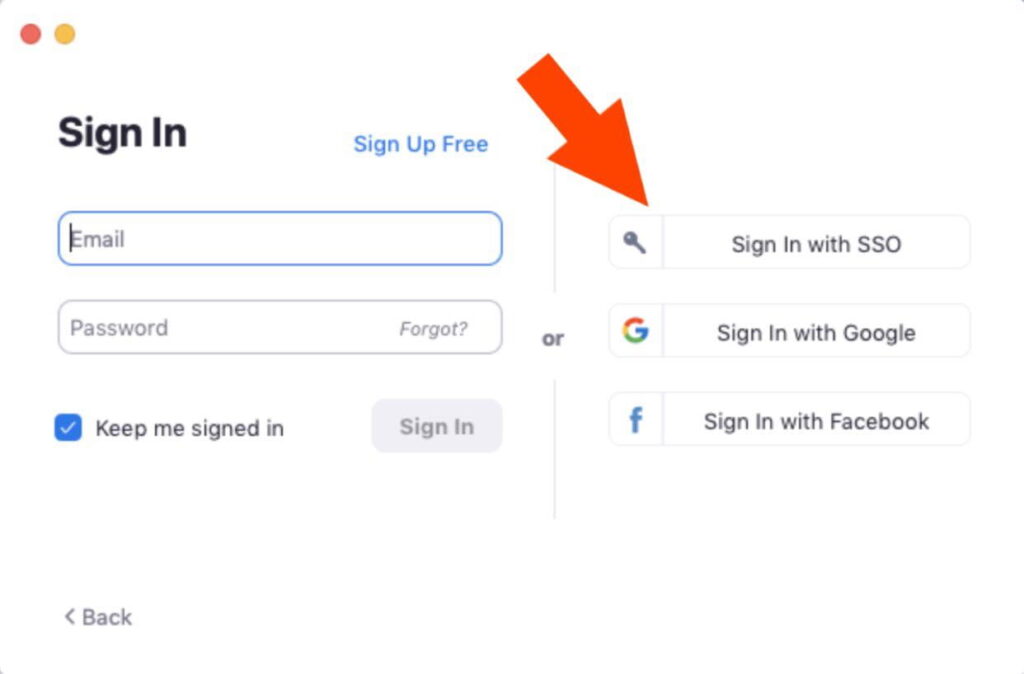
After clicking the app, the initial login screen will appear as shown below. Select “sign in with SSO” on the right side of the screen, then proceed to the next step.
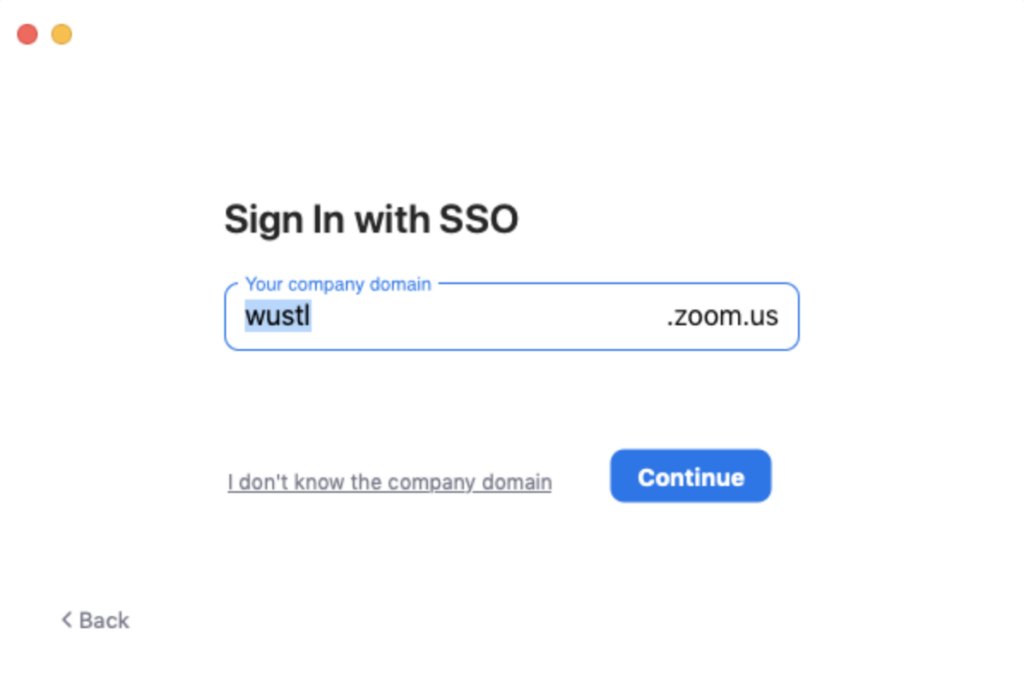
After selecting “log in with SSO,” you will be prompted to enter a domain name. Enter “wustl” as the domain name and select continue.
**NOTE: Certain individuals requiring HIPAA compliance will be asked to upgrade to a WustlHIPAA Zoom account. Individuals in this group should be prompted at sign-in and again via email.
You should now be signed in to your WashU Zoom account.
Resources
Got Questions? We’ve got answers!
Feeling a little lost? Check out these resources to get yourself up and running in just a few clicks.
Looking for resources on Zoom as a teaching tool? The Center for Teaching and Learning has you covered!